- Unlimited transcript uploads
- Ovae joins your calls, up to 20 hours a month
- Voice commands
- No Ovae line at the foot of your pages
- The full page with the quote check, Draft email and Add to calendar
Be in the meeting. Ovae writes the next step.
Ovae is an AI that joins your call or reads your transcript. Each commitment comes back beside the exact words.
Transcripts are easy to get now. The follow-through still is not.
The recap gets read once. What you promised stays in your head.
Someone has to turn 40 minutes of talk into decisions, owners, dates and a message to send.
Note-takers give you notes. Ovae gives you the next step.
From speech to page
What was said becomes who owes what.
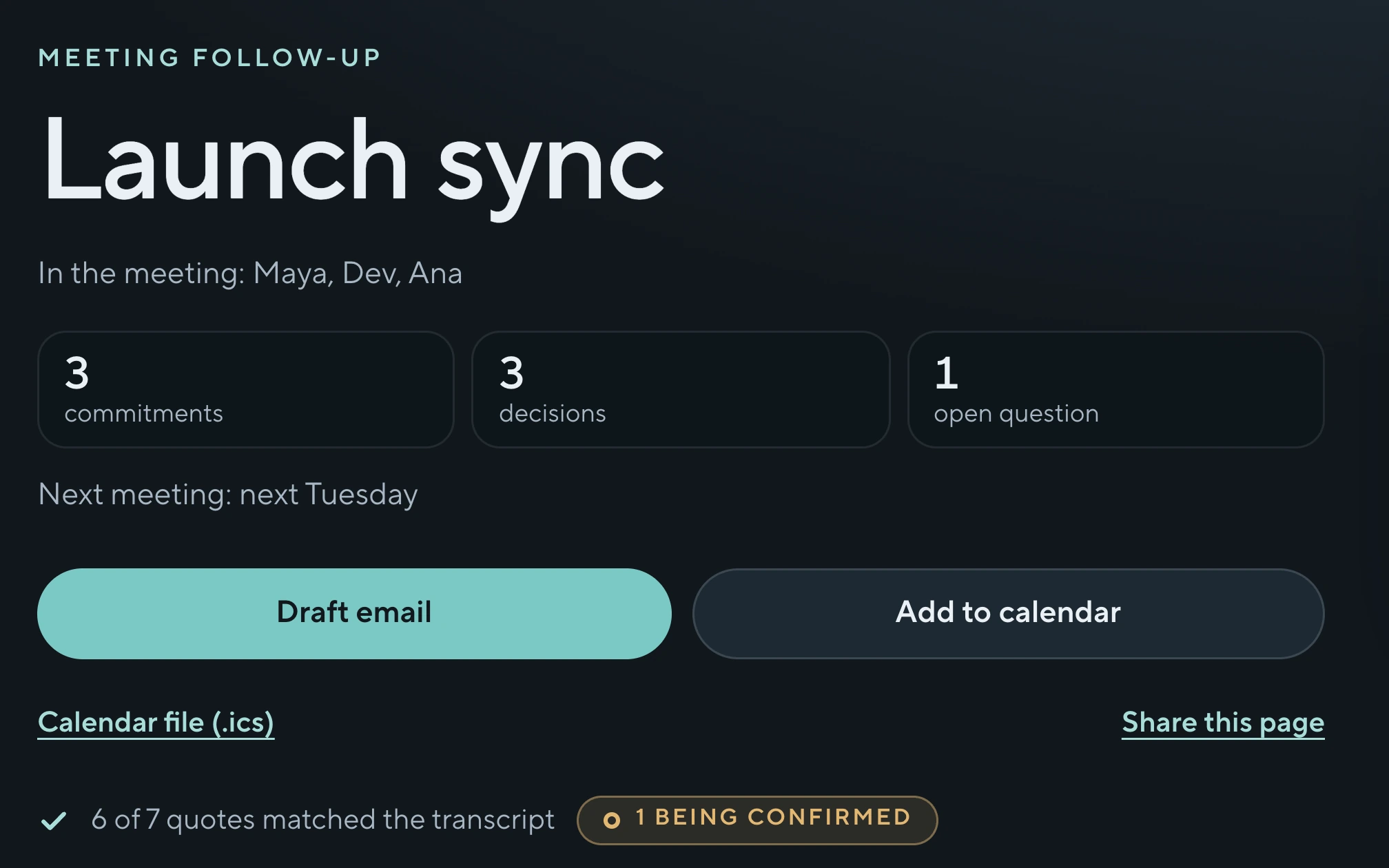
Ovae.Sample page, Launch sync
Decision
The launch moves to the following Tuesday.
“So let's move the launch to the following Tuesday.”Maya, minute 11
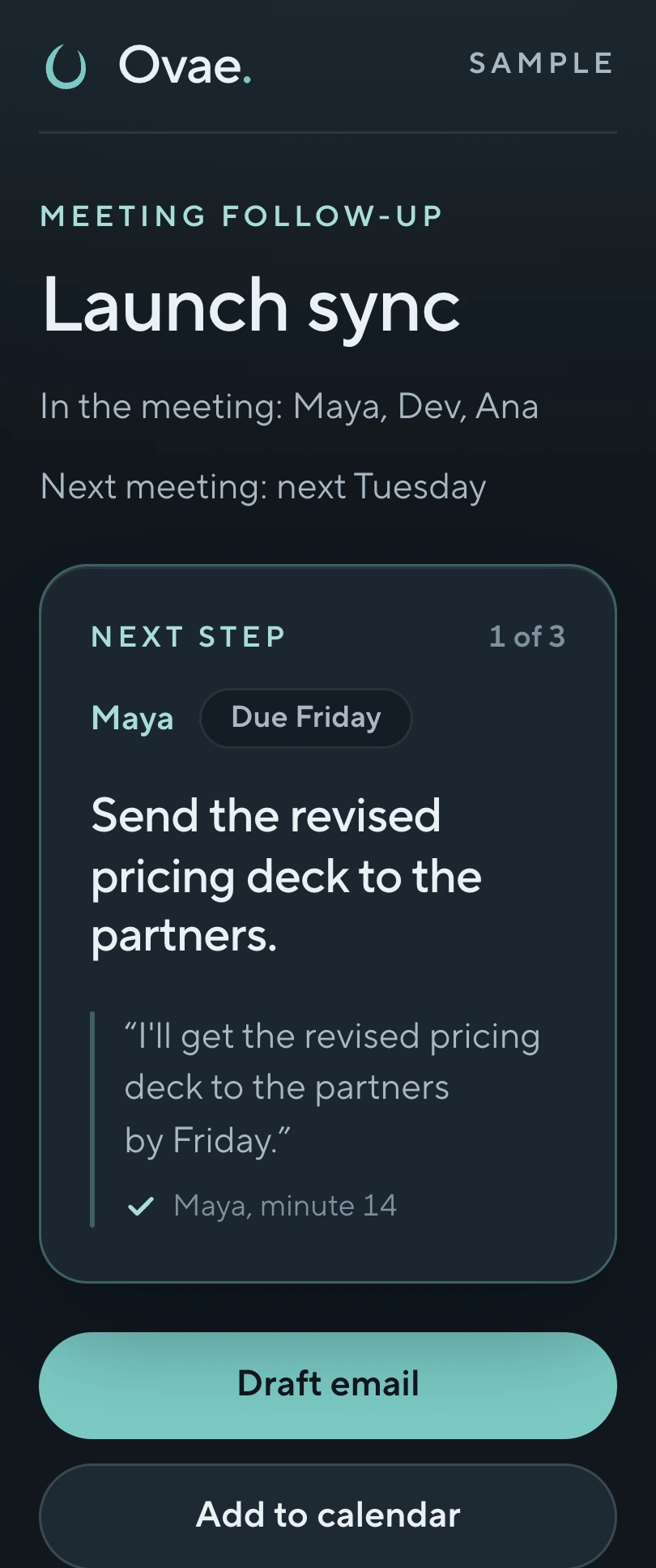
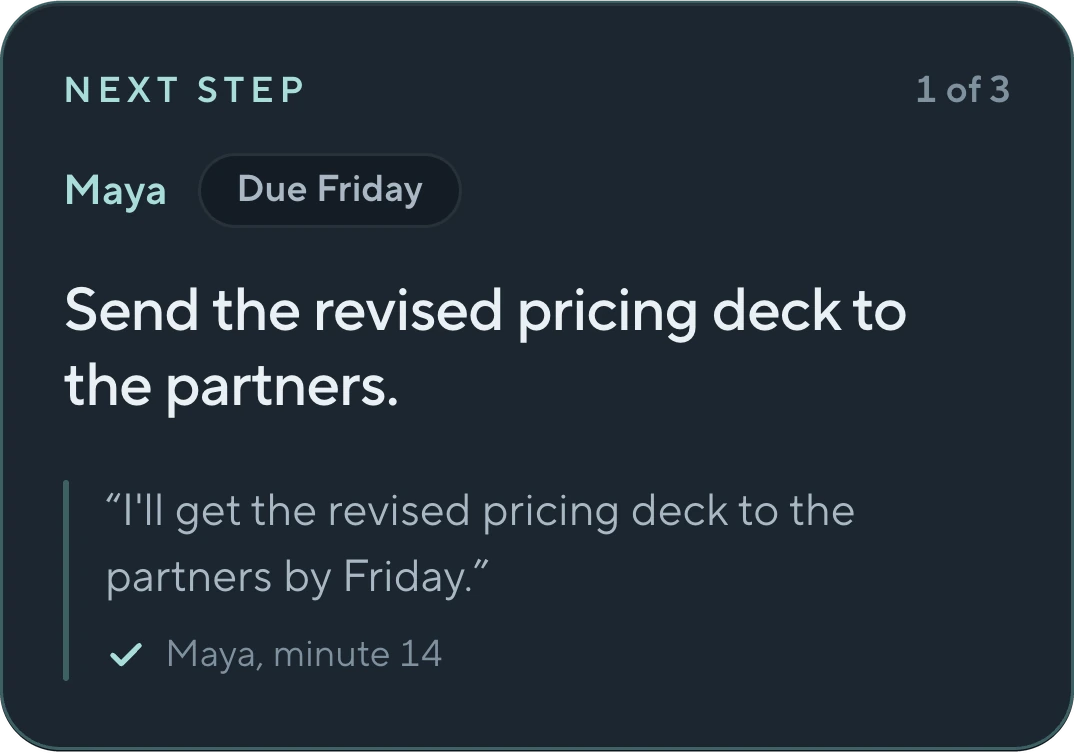
MayaDue Friday
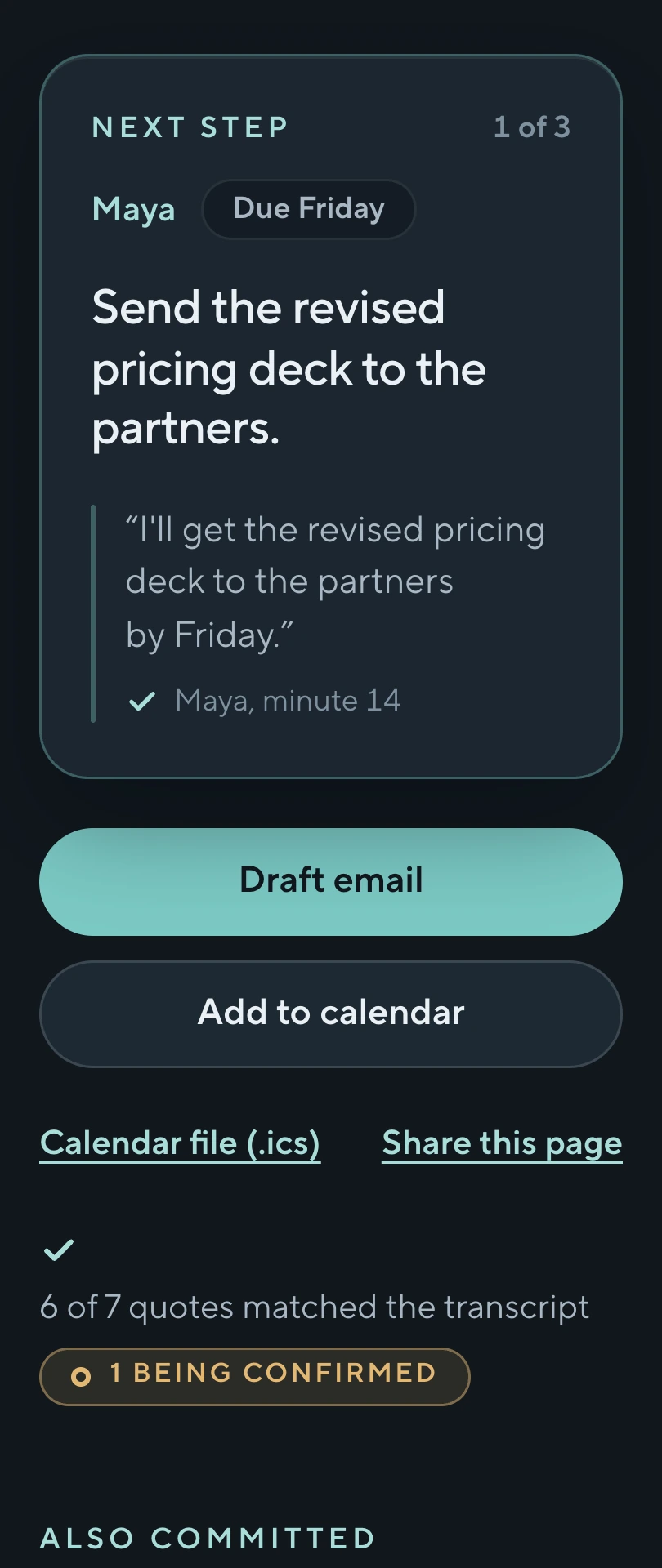
Send the revised pricing deck to the partners.
“I'll get the revised pricing deck to the partners by Friday.”Maya, minute 14
Open question
Who greets guests at the door?
“Who is greeting guests at the door, is that me or Ana?”Dev, minute 17
40 minutes of talk in. 1 page out.
How it works
3 steps from your meeting to the page.
- 1
Paste a link, or add a transcript.
Paste the meeting link and the start time, or paste, upload or forward a transcript from the tool you already use.
- 2
Have the meeting.
If Ovae is on the call, the host lets it in as a guest, it posts a notice in the call chat that an AI is listening and recording, and it stays quiet. A transcript means the meeting already happened.
- 3
Open the page. Tap send.
Each commitment sits beside the exact words. Draft email opens with the message already written, and Add to calendar opens an event with the day filled in. You read it, then you send it.
Step 1 starts 3 ways
-

Ovae joins your call
Ovae joins as a guest on Zoom, Google Meet or Microsoft Teams and builds the page when the call ends.
How you start
Paste the meeting link and the start time.
Where the page arrives
When the call ends, Ovae gives whoever booked it a link to the page.
-
Bring a transcript
Ovae turns a transcript from Otter, Fireflies, Fathom, Granola or Read.ai into the same page. Nobody joins a call.
How you start
Paste it, upload the file, or forward the recap email.
Where the page arrives
Where you added it, after a short progress line.
-
Run the live room
Ovae joins the call and fills the room screen with supporting pages while people talk.
How you start
Paste the meeting link, then open the room screen where everyone can see it. See the live room
Where the page arrives
On the room screen, with its QR code, when the meeting ends.
What you leave with
1 page, built from what was said.
Each decision and commitment sits beside the speaker's exact words and the minute. Read it, then send it.
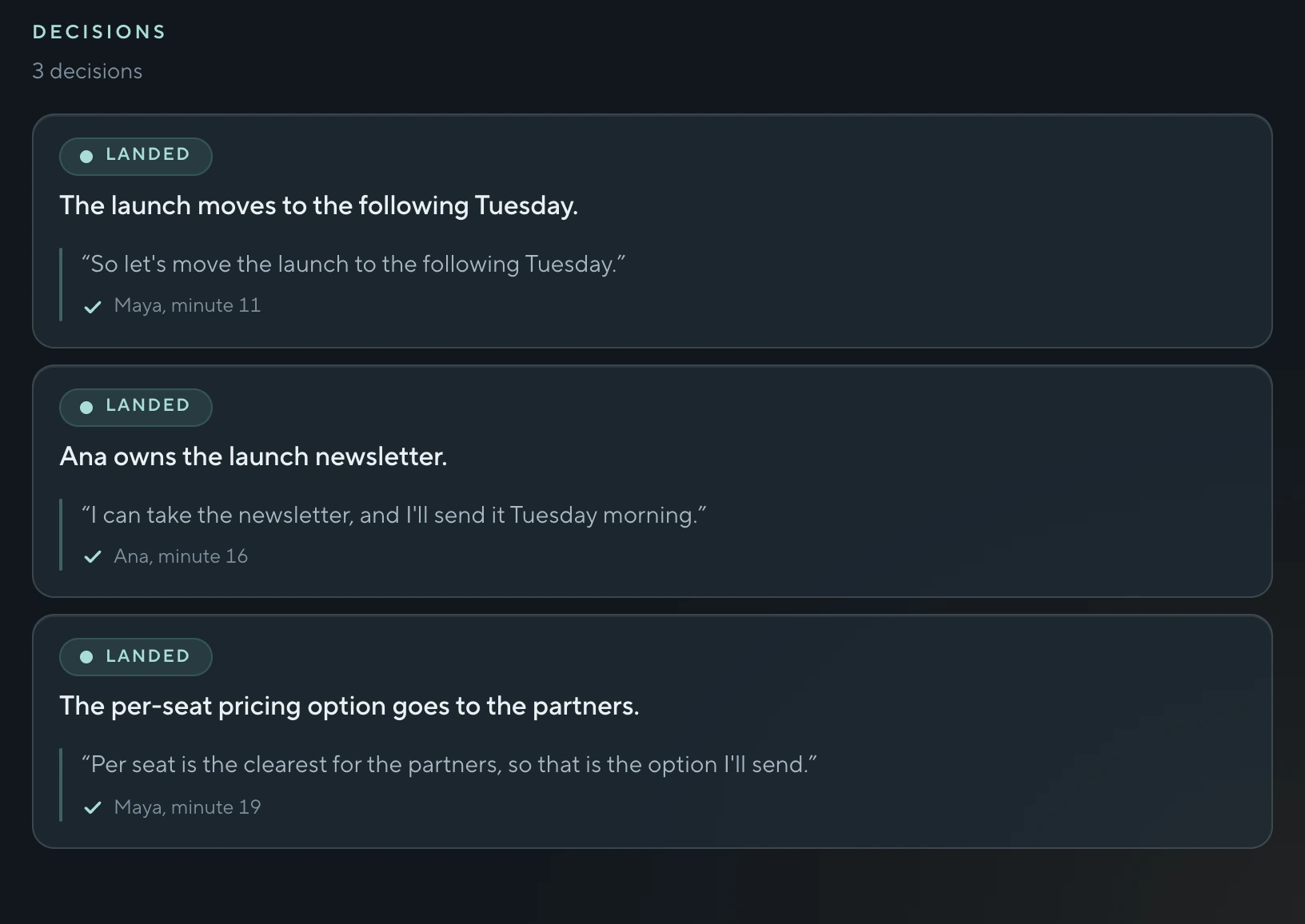
- DecisionsWhat was settled, in 1 line each.
- CommitmentsWho owes what, by when if anyone said, and the speaker's exact words.
- Open questionsWhat nobody settled, so it does not get lost.
Sample email draft
SubjectFollow-up: Launch sync
Commitments
- Maya: Send the revised pricing deck to the partners (due Friday)
- Dev: Confirm the venue and send the invite (due Wednesday)
- Ana: Write and send the launch newsletter (due Tuesday morning)
Decisions
- The launch moves to the following Tuesday.
- Ana owns the launch newsletter.
- The per-seat pricing option goes to the partners.
Open questions
- Who greets guests at the door?
Draft email opens in your mail app with this text. You add the recipients, read it, then tap send.
Sample calendar event
Launch day
The Tuesday the group chose, all day
Add to calendar opens a calendar event with the day filled in. The calendar file (.ics) on the sample page works with any other calendar. Ovae never sends an invite on its own.
Open the sample pageOpens in a new tab. The sample is a real page built from a sample meeting.
Quote check
Each quote is checked against the transcript.
Ovae looks for the quote's words in the transcript, in that speaker's own lines. If they are there, the quote shows a check, the speaker and the minute. If they are not, the commitment stays on the page with no quote, marked “being confirmed”, and you check it before you send.
The check cannot tell when the transcript itself misheard someone, so read the page before you send it.
In the transcript, Maya“I'll get the revised pricing deck to the partners by Friday.”
Matches the transcript, minute 14
Quote drafted for Ana's commitment“I will write the launch newsletter and send it Tuesday at nine.”
Being confirmedNot in Ana's lines, so the page keeps the commitment, drops the quote and flags it: Write and send the launch newsletter.
Sample: 6 of 7 quotes matched the transcript, 1 being confirmed. On the sample page, Ana's own words at minute 16 sit under the decision. The check flags a mismatch; it does not rewrite it.
The live room
For the person who runs the room.
The live room runs on a call. Ovae joins, listens, and builds supporting pages on the room screen while people talk: an agenda, a comparison of options, a launch plan. Plan the session ahead, or let Ovae follow where the meeting goes.


Decisions
Ovae shows its pick. The group decides.
Each open decision lists its options side by side, with Ovae's pick marked and the reason beside it. When the group settles it, Ovae writes the answer down.
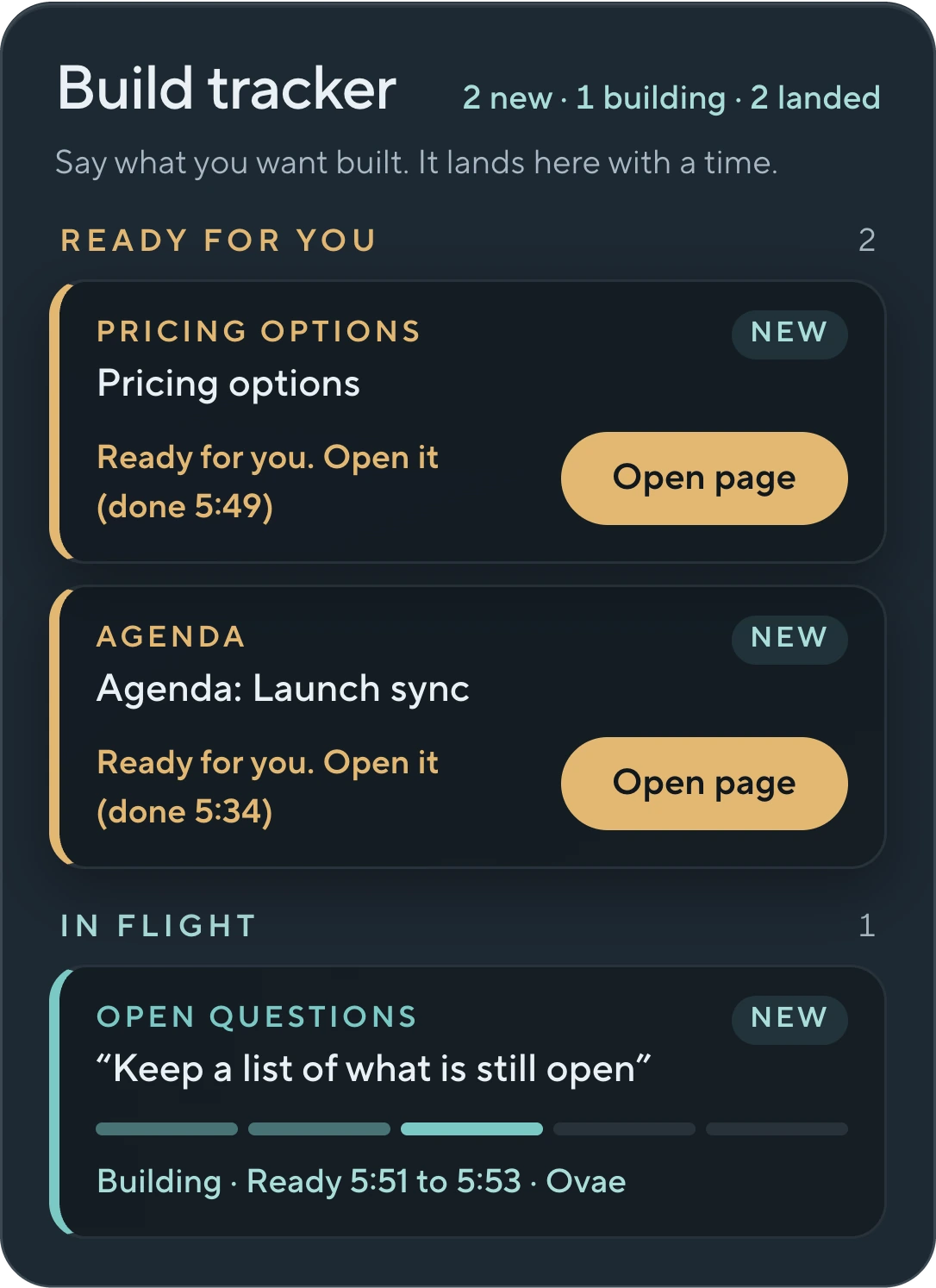
The build tracker
Say what you want built. It lands here with a time.
Ask for a supporting page, for example “put the 3 pricing options side by side”, and the build tracker on the room screen lists it with the time it will be ready.

The hand-off
Scan the code. The page is on your phone.
When the meeting ends, the page goes up on the room screen with its QR code. Anyone who scans it opens the same page.
Voice commands
4 commands, said out loud.
Say Ovae's name, then the command.
“Ovae, pause.”

“Ovae, pause.”
Ovae stops building and the room screen says paused.
“Ovae, resume.”
Ovae picks the meeting back up.
“Ovae, leave.”
Ovae leaves the call.
“Ovae, end meeting.”
Ovae leaves, builds the page, and puts it on the room screen with its QR code.
Watch the film, 50 secondsA sample meeting, from the live room to the follow-up page.
For anyone who leaves a meeting owing a follow-up.
Workshop facilitators
You run the room and write the recap after. Ovae builds supporting pages while people talk, then puts the follow-up page on the room screen with its QR code.
Independent consultants and agency leads
Send the page with each commitment beside the words your client used. The email is drafted for you to edit and send.
Chiefs of staff and executive assistants
Add the transcript of a meeting you were not in. Each commitment comes back with its owner, its date if anyone said one, and the exact words.
Founders with back-to-back calls
Paste each call's meeting link. Afterward you have what you promised, what was promised to you, who owes it and by when, and an email to send.
Coaches, trainers and course leaders
After a session you have what each person committed to, in their own words, and an email drafted for you to edit.
Keep your note-taker. Here is what Ovae adds.
Fireflies, Otter, Granola and Fathom write the notes and action items. Ovae takes the transcript they already made and adds 4 things.
Exact words beside each commitment
The speaker's own line, with the minute.
Each quote checked
A quote Ovae cannot find in the transcript is marked “being confirmed”.
A day only when someone said one
If nobody named a day, the date stays blank instead of guessed.
The live room, during the call
The room screen shows decisions and supporting pages while the meeting goes.
Product names belong to their owners. Keep your note-taker for CRM sync and call scoring. Ovae does neither.
Joins 3 call tools. Takes transcripts from 5 note-takers.
- Joins calls on
- ZoomGoogle MeetMicrosoft Teams
- Takes transcripts from
- OtterFirefliesFathomGranolaRead.aiRecap emails
- Gives you
- A drafted emailA calendar eventA calendar fileA share link
Paste it, upload the file or forward the recap email. Nothing to connect.
For builders
An MCP server and a command line.
The MCP server gives your assistant 1 tool: make a follow-up page from this transcript. The command line does the same from a terminal.
Sample output
$ ovae page launch-sync.txt
Reading the transcript
Page ready: launch-sync.html
3 commitments, 3 decisions, 1 open question
6 of 7 quotes matched, 1 being confirmed
Pricing
Start with a transcript. Pay when Ovae joins your calls.
Draft prices in US dollars, billed monthly.
Free
$0to start
Try it on a transcript you already have.
- 3 transcript uploads a month
- A small Ovae line at the foot of each page
Team
$15per person per month, 3 people or more
For teams that follow up together.
- Everything in Plus
Studio
$79per facilitator per month
For people who run the room.
- Everything in Plus
- The live room: the room screen builds supporting pages while people talk
- A QR code that opens the page on every phone
- Up to 20 live sessions a month
Questions.
- Does anyone need to install anything?
- No. You paste a meeting link or add a transcript. Guests open a link or scan a QR code.
- Does Ovae send things for me?
- No. Ovae never emails, messages or invites anyone about what was said. It drafts the email and fills in the calendar event, and you tap send. In the live room the page goes up on the room screen with its QR code. The one thing Ovae posts by itself is the notice in the call chat when it joins.
- Will people on the call know Ovae is there?
- Ovae posts a notice in the call chat the moment it joins. Anyone can ask the host to stop it.
- Do I have to leave my note-taker?
- No. Paste, upload or forward the transcript it already made, and Ovae builds the page from that.
- What if a quote is wrong?
- If Ovae cannot find a quote's words in that speaker's own lines, the commitment shows with no quote and the mark “being confirmed”. Check that one yourself. A transcript that misheard someone passes the check, so read the page before you send it.
- Can I use it for clinical or legal-privilege sessions?
- No. Ovae makes no compliance claims, so keep those sessions out of it.
- Can I stop Ovae during a call?
- Yes. Say “Ovae, leave”, or ask the host to stop it.
- When can I start?
- Leave your email in the early access form below, and we will write when your spot opens.
Early access
Your next meeting ends with the next step.
Leave your email and we will write when your spot opens.
We use your email only to tell you when your spot opens.